Share Content
Once a play or lesson is ready, choose how it should reach coaches and players. This guide walks through the publishing options available in the coach portal.
1. Publish to the Team Library
- Open the play or lesson and click Publish.
- Select one or more teams. Content appears instantly in the team library for staff and players.
- Optional: Add to a Collection so you can reuse the same set for other teams later.
When to use
- Common systems or drills every team should access.
- Seasonal bundles (Preseason Warm-Ups, Tournament Prep).
2. Schedule a Release
- From the publish modal choose Schedule.
- Set date, time, and time zone. The system respects the team’s default zone by default.
- Confirm notification preferences (push, email) for staff and players.
- Scheduled items appear in the Upcoming Releases tab for quick editing.
When to use
- Weekly training plans prepared in advance.
- Content that should unlock after a game or milestone.
3. Send a Targeted Assignment
- Choose Share → Assignment.
- Filter by positions, sub-teams, or individuals.
- Add completion requirements such as reflection notes or media uploads.
- Monitor progress in Team → Activity and send reminders with one click.
When to use
- Recovery protocols for specific players.
- Captains’ leadership modules.
- Make-up work for athletes returning from injury.
4. Share Plays Through Playlists
- Open the Plays tab and select a play to view its detail page.
- Click Add to playlists, choose the collections that make sense, then save.
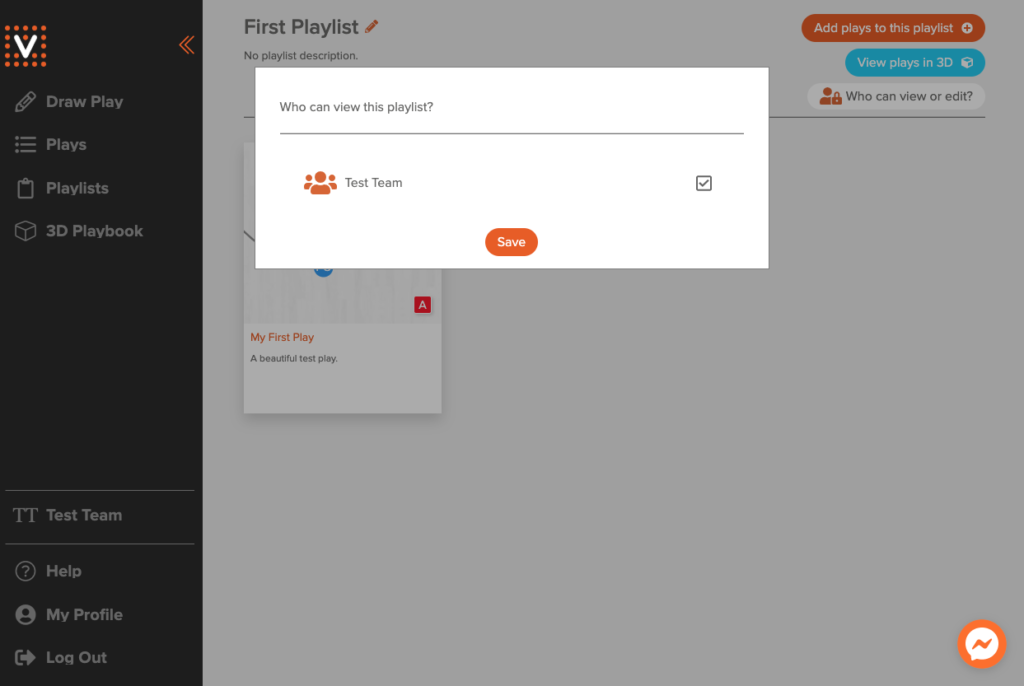
- Head to Content → Playlists, open the playlist, and select Who can view or edit?
- Pick the teams that should receive the playlist and click Save. Every play you add to that playlist later will automatically land with the same teams.
5. Manage and Tag Plays
- From the play detail page, choose Edit details to rename the play, refresh the description, or add coaching notes.
- Use the Tags field to capture focus area, personnel, game situation, or difficulty. Consistent tags make filtering easier when the library grows.
- Search by tag in the Plays tab to assemble fast practice plans.
4. Notify Staff & Players
- Enable the Notify Staff or Notify Players toggle to send real-time alerts.
- Customize the message to highlight key instructions or deadlines.
- For major releases, combine in-app notifications with an email or team chat reminder.
Post-Share Checklist
- Watch the Engagement graph over the next 48 hours.
- Use comments or reflections to gather feedback for your next update.
- Archive or unpublish old content so searches stay focused on current plans.